Sell
Answer Kaufland tickets in Sellgrip.
Sellgrip fetches your tickets at every sync and shows where a customer is waiting for you. You reply and close in Sellgrip, and on Pro and Business you can use your own templates.
No payment details, no minimum term.
What the inbox does
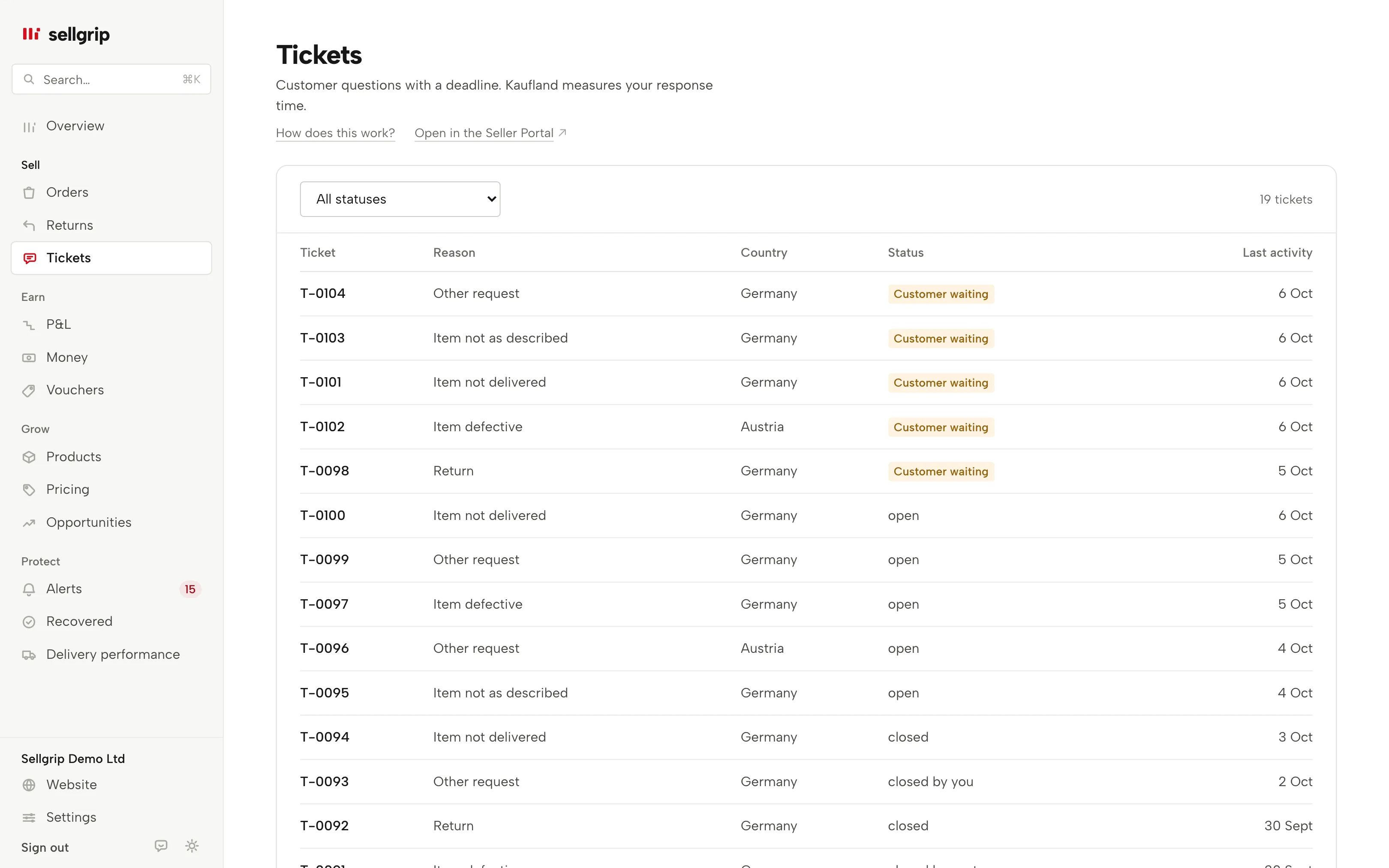
All tickets in one list
With Kaufland’s reason, topic, country, status and last activity. Tickets where the customer is waiting come first. Filter by status, or show only “Customer waiting”.
Customer waiting
This label appears when a ticket is open and Kaufland lists it as yours to handle. The ticket shows how long the customer has been waiting.
The thread, fresh from Kaufland
When you open a ticket, Sellgrip reads the message thread from Kaufland at that moment. So you also see a message from two minutes ago.
Reply with files, and close
Your reply goes straight to the customer. You can attach up to five files, such as a photo or a PDF. Closing asks first, because after that the customer can no longer reply.
Open a ticket from an order
Need to ask a buyer something, such as a part missing from a return? On the order in Orders, “Open a ticket” writes to the customer through Kaufland. You pick the items and one of Kaufland’s five reasons, then confirm.
The deadline in Alerts
When time gets short, the ticket shows up in Alerts. A return ticket gets its own case there.
How you answer a ticket
-
Sellgrip fetches the tickets
At every sync, through the Kaufland Seller API. Tickets with a close deadline appear on the overview under “To do today”, nearest deadline first.
-
You read the thread
Your messages sit on the right, the customer’s and Kaufland customer service’s on the left. Above them are the reason, country and your last reply.
-
You reply
Then the ball is in the customer’s court, and Sellgrip stops flagging the ticket. If the customer writes again, the clock starts over.
What Kaufland measures in customer service
Kaufland measures how fast you reply to tickets. Miss the deadline and your service metrics suffer.
Sellgrip counts the deadline in business hours on working days. It takes the holiday calendar from the ticket’s marketplace, because every Kaufland country has its own public holidays.
- Reply within 48 hours
- Kaufland expects a reply to every ticket within 48 hours on working days. It takes weekends and national holidays into account.
- Return requests
- Since 1 February 2026, your first reply must include a valid return option. Without it, Kaufland cancels the order at your expense.
- Tickets and payouts
- An open ticket pauses the release period for that order’s revenue. The payout date calculator shows what that means for your date.
Sources: Kaufland Seller University, Customer enquiries; Kaufland Seller University, Customer service KPIs; Kaufland Seller University, Payment, read on 11 September 2026.
What you see in Sellgrip
- Customer waiting
- Shown as “Customer waiting”, in colour, in the list and in the ticket. The waiting time only appears when Sellgrip can back it with a timestamp.
- Reason and topic
- Kaufland’s five ticket reasons, such as “Item defective” or “Return”. Next to it, the topic of the ticket.
- Message thread
- The three newest messages sit right above the reply box, each with sender and time. Older ones fold away under a line such as “4 earlier messages”. If Kaufland does not load the thread, Sellgrip says so rather than showing an empty one.
- Send a reply and close the ticket
- The reply box is below the thread, with “Attach files” and the “Send reply” button: up to 5 files, 4 MB in total, as PDF, JPG, PNG, GIF, TIFF, TXT, DOC, DOCX or XLSX. “Close ticket” is under it, with a tick to confirm.
- Insert template, on Pro and Business
- Above the reply box. The reply template goes into the box with the ticket’s first name, order number and item, and you send it yourself.
- The order and the Seller Portal
- Under “Order items”, the order number opens that order in Sellgrip. “Open in the Seller Portal” shows the same ticket at Kaufland.
Questions about Customer service
Is the inbox on the Free plan?
Yes. Reading, replying and closing are all part of Free.
When does the 48-hour clock start?
At the last customer message that has not had a reply. If you have replied since, Sellgrip shows no deadline.
Are there reply templates?
Yes, on Pro and Business: your own texts, into which Sellgrip puts the first name, order and item from the ticket, and starter templates in the buyer’s language. More under Reply templates.
Why can’t I see the thread?
Then Sellgrip could not load it from Kaufland just now. The page gives the reason and shows the details from the last sync.
Who can reply?
Owner and Staff, while the Accounting role can only read. The Log records that a reply was sent, not the text.
Which Kaufland countries does this cover?
Tickets from all nine Kaufland countries, including Spain, in one inbox.
Related tools
- What does a cancellation rate above 1% cost? Guide
- Cancellation rate calculator Free calculator
- Account metrics Sellgrip tool
- Early warning Sellgrip tool
- Delivery performance Sellgrip tool
Checked on , last updated
Start with Sellgrip today.
You can start free without a card or a contract. Want everything? Try Business for 14 days (payment details required). After that you pay for the plan you chose, plus VAT, unless you cancel first.