Sell
Your Kaufland orders, with the deadline on every row.
Sellgrip shows every order with its status and shipping deadline. You mark orders as shipped one by one or in bulk, and every action goes straight to Kaufland.
No payment details, no minimum term.
What you can do with an order
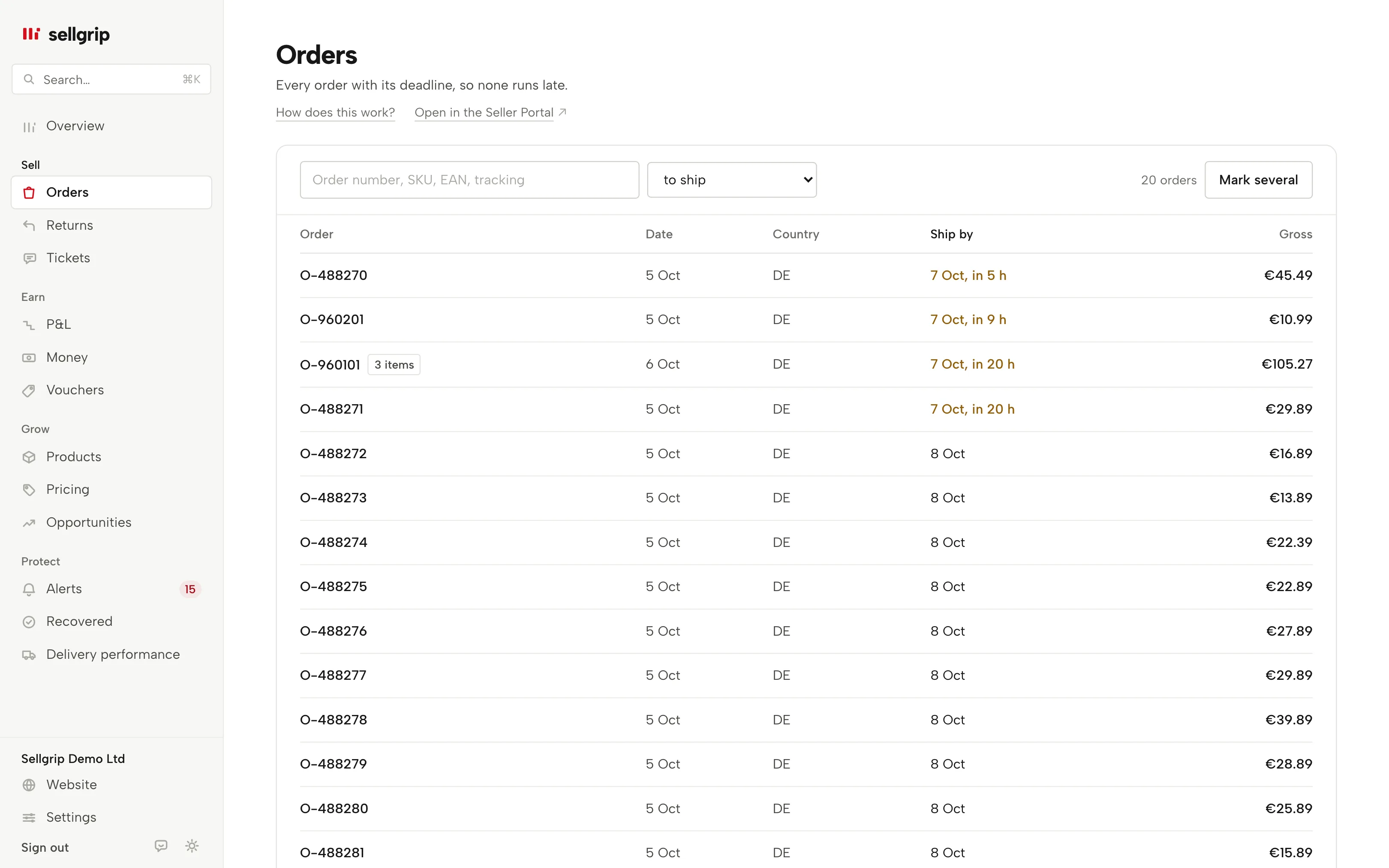
A deadline on every row
An overdue deadline shows in red in the “Ship by” column, and one within 24 hours in colour with the hours left. Shipped or cancelled orders stay grey.
Mark as shipped, one by one or in bulk
One item at a time, or up to 100 items in one go with “Mark several”: type in tracking numbers, paste a list or choose a CSV file. Type “dhl” and Sellgrip sends the spelling from Kaufland’s list.
Per item and per parcel
With “Dispatch per item”, each item gets its own tracking number, and items left unticked stay open. “Add shipment” reports a second parcel or a replacement, and “Move to shipping” takes an open item into shipping.
Delivery address with pick-up point
For items that still need to go out, the order shows the delivery address. If the parcel goes to a DHL Packstation or a parcel shop, the location and Postnummer are listed.
Cancel with a reason
You pick one of Kaufland’s ten cancellation reasons and confirm with a tick. A reason like “Out of stock” counts towards your seller-related cancellation rate.
Refunds and returns, on Pro and Business
Refund with an amount and a reason, partial refunds too, up to the value of the item plus shipping. If a buyer contacts you directly, you start the return at Kaufland from the order, or add the item to a return that is already open.
How you handle an order
-
Sellgrip reads your orders
At every sync, through the Kaufland Seller API. New orders and status changes then show in the list.
-
You open the order
Kaufland handles each item separately, so the buttons sit on the item. That way you can ship or cancel just part of an order.
-
Kaufland confirms
An action only counts once Kaufland confirms it. The order’s “History” shows each action with Kaufland’s answer, and the “Log” under Settings lists them all. Every tracking number you enter counts in Delivery performance.
Why the shipping deadline matters
If an order goes too long without being marked as shipped, Kaufland cancels it. That counts towards your cancellation rate and costs a fee from 1%.
The tracking number also decides when your money is released. That is why it is a required field when you mark an order as shipped.
- Automatic cancellation
- If an order has no open ticket and is still not marked as shipped 14 days after the latest delivery date, Kaufland contacts you. If nothing changes within seven more days, Kaufland cancels it and the cancellation counts as seller-related.
- Cancellation rate: target under 1%
- Between 1% and 2.99%, Kaufland charges 7% of the total price of the cancelled transactions; over 3% it is 15%. The cancellation rate calculator shows the amount for your month.
- Release with or without tracking
- Kaufland releases your revenue 14 days after delivery (with a tracking number) or 21 days after the order is marked as shipped (without one). The payout date calculator works out your date.
Sources: Kaufland Seller University, KPIs for your delivery performance; Kaufland Seller University, Order management; Kaufland Seller University, Customer service KPIs; Kaufland Seller University, Payment, read on 11 September 2026.
What you see in Sellgrip
- Orders
- The list under Orders, with order, date, country, status, “Ship by”, items and “Gross”, searchable by order number, SKU, EAN or tracking number. “Gross” means item plus the shipping the buyer paid. A tracking number you reported through Sellgrip opens the carrier’s tracking page for common carriers such as DHL, DPD, GLS or InPost. “Open in the Seller Portal” shows the same order at Kaufland.
- Mark as shipped and Mark several
- “Mark as shipped” is on every item that still needs to go out, “Mark several” above the list. Afterwards each row says “Reported”, “Skipped” or “Rejected”, with Kaufland’s reason.
- Cancel and refund
- “Cancel” and “Refund” each open a small form with a reason and a tick to confirm. For “Refund”, the maximum amount is already in the field.
- Shipping label
- On Pro and Business you buy the GLS label in the order itself, one per parcel. You can report the dispatch with it straight away. More under Shipping labels.
- Invoice
- Below the items, the invoice block shows where the invoice for this order stands, also when Kaufland already holds one. On Pro and Business you create and send it, upload your own PDF or let Sellgrip upload it automatically. More under Invoices.
- Returns and History
- “Returns” shows each return on the order with its progress. “History” lists what went to Kaufland through Sellgrip, with Kaufland’s answer and the refunds. Refunds made in the Seller Portal are not in it, because Kaufland does not provide them through the API.
- Ticket to the customer
- “Open a ticket” writes to the buyer through Kaufland about this order, for the items you choose. The answer arrives in Customer service.
- Read-only
- The Accounting role sees “Read-only access” instead of the buttons. Only Owner and Staff can start actions.
Questions about Orders
What can I do on the Free plan?
View orders, mark them as shipped one by one or in bulk, add shipments, cancel and open a ticket to the buyer. Refunds, returns, shipping labels and invoices come with Pro and Business.
How far back does the list go?
Your plan sets the history: 30 days on Free, 365 days on Pro and no limit on Business.
What happens if Kaufland rejects an action?
Sellgrip shows Kaufland’s answer and does not resend anything on its own. For an unknown carrier, Sellgrip suggests the closest names from Kaufland’s list.
Can I undo a cancellation?
No, cancelling and refunding are final. That is why Sellgrip asks for a tick first.
Can I write to the buyer about an order?
Yes. Under “Ticket to the customer” you open a ticket at Kaufland about this order and choose the items it concerns. It then continues in Customer service.
Which Kaufland countries does this cover?
Orders from all nine Kaufland countries, including Spain. The “Country” column shows where an order comes from.
Related tools
- The Kaufland Seller Portal explained, step by step Guide
- Shipping labels Sellgrip tool
Checked on , last updated
Start with Sellgrip today.
You can start free without a card or a contract. Want everything? Try Business for 14 days (payment details required). After that you pay for the plan you chose, plus VAT, unless you cancel first.