Grow
What sells on Kaufland and is missing from your range.
Kaufland flags bestsellers you do not list, and popular items whose price is not competitive. Sellgrip puts those flags next to your catalogue, without a forecast of its own.
Try Pro or Business free for 14 days, then pay monthly or yearly for the plan you chose, plus VAT, unless you cancel first.
What Opportunities shows
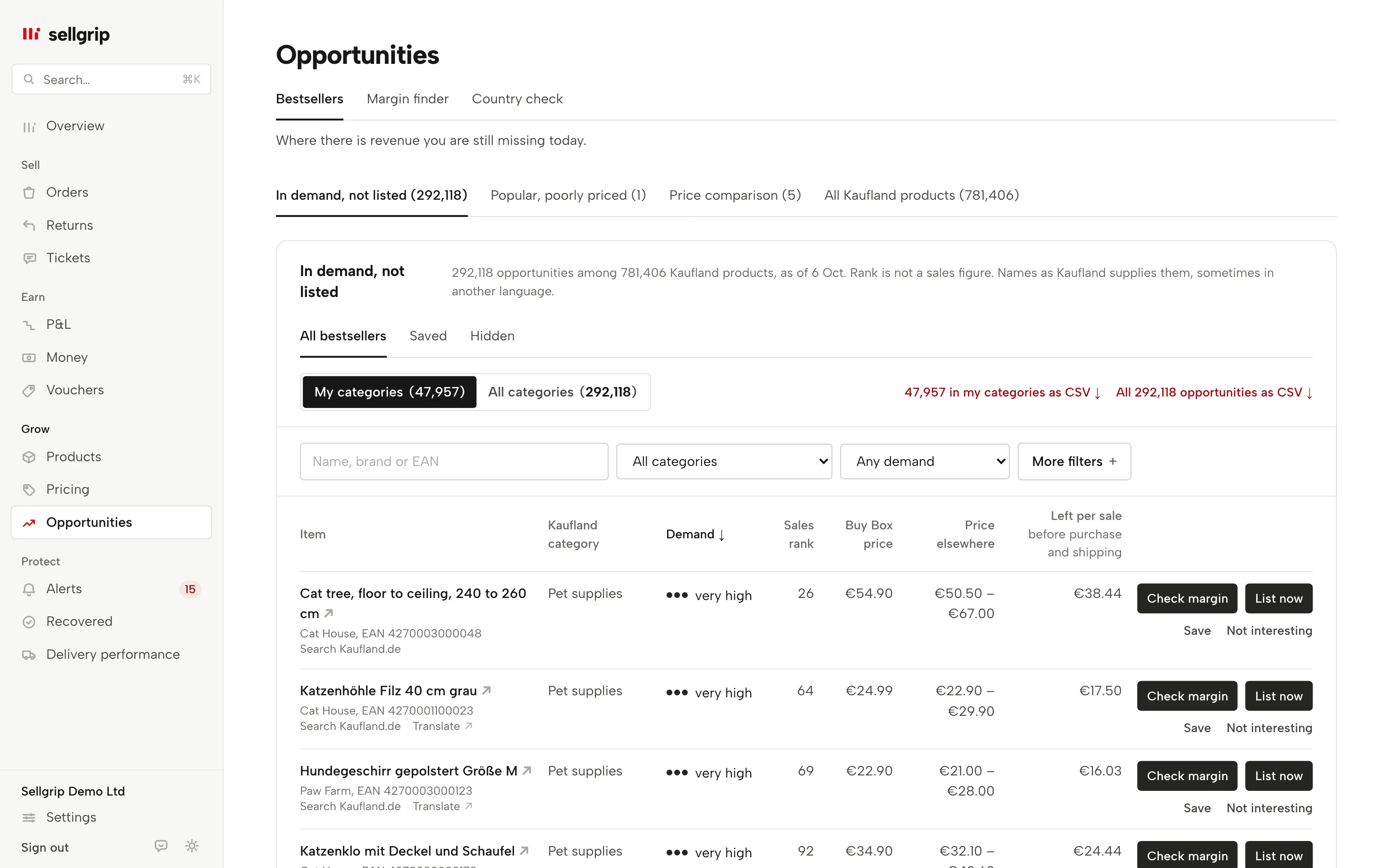
In demand, not listed
Items that sell well according to Kaufland and are missing from your range. Sellgrip matches their EAN against your offers.
Popular, poorly priced
Items you offer whose price Kaufland flags as not competitive. They have a tab of their own and a tag in the price comparison.
Price comparison
Your price next to the lowest offer on Kaufland, the price online and the Buy Box price, per item and country. More under Price comparison.
Demand and sales rank
Kaufland’s own demand level from very low to very high, plus the sales rank. A rank is not a sales figure, and Sellgrip does not turn it into one.
Your categories first
The list opens on the categories you already sell in, with “All categories” one click away. Save what interests you and mark the rest “Not interesting”.
Every opportunity as a CSV
Sellgrip keeps every opportunity Kaufland names, not only the ones on screen. Download all of them, your own categories or one category as a CSV, in your own language.
How Opportunities is built
-
Kaufland supplies the data
Once a day, Sellgrip reads Kaufland’s assortment data through the Seller API. If the list arrives incomplete, Sellgrip does not use it.
-
Sellgrip matches it to your catalogue
Kaufland’s flag decides; your catalogue only decides which side an item is on: listed or not listed. A bestseller badge on its own is not an opportunity for Sellgrip.
-
You list it when it fits
With “List now” you put an item in demand straight onto Kaufland, in the country you choose. Sellgrip suggests a price just below the Buy Box and only lists below your break-even if you confirm. To check your purchase price first, “Check margin” opens the Margin finder.
Why Kaufland’s own data matters
Kaufland gives sellers assortment data through the Seller API: demand, sales rank, price range and two flags. The flags are Kaufland’s judgement, not Sellgrip’s.
Sellgrip does not project sales from them. Every number on screen comes from Kaufland or from your own offer.
Before you add a bestseller, commission and stock matter. The commission per category is listed under Kaufland fees.
- Commission per category
- Between 7% and 16% depending on the category, on Kaufland.pl between 4% and 12%. Media items add €0.70 each, 18 Kč in Czechia and 3 zł in Poland.
- Out of stock counts
- “Out of stock” is one of the reasons Kaufland counts as a seller-related cancellation. So only list what you can deliver.
Sources: Kaufland, Conditions; Kaufland Seller University, Customer service KPIs, read on 11 September 2026.
What you see in Sellgrip
- Three tabs
- “In demand, not listed”, “Popular, poorly priced” and “Price comparison”, each with its count. Above the list: how many opportunities Kaufland’s data produced and how recent it is. If it is older than a week, Sellgrip says so.
- In demand, not listed
- Under “In demand, not listed”: items with category, demand, sales rank, “Buy Box price”, “Price elsewhere” and “Left per sale”, what is left after VAT and commission. The name opens a web search for the EAN, with a Kaufland search under it and, for names in another language, “Translate”. “Check margin” and “List now” sit at the end of the row.
- Filters and your shortlist
- Search by name, brand or EAN, filter by category and demand, and under “More filters” by brand, price, “Leaves at least” and sales rank. “Save” moves an item to “Saved”, “Not interesting” to “Hidden”.
- CSV downloads
- Next to “My categories” and “All categories”: every opportunity as a CSV, the ones in your own categories, or one category once you filter by it. Headings and figures are in your language. Items you have listed since are left out.
- Price comparison
- “Your price”, “Lowest on Kaufland”, “Difference”, “Online incl. shipping” and “Buy Box price”, where a plus in the difference means you are above the lowest offer.
- Popular, poorly priced
- A tab of its own for the items from your range that Kaufland flags this way, with the same tag in the price comparison. It is Kaufland’s judgement, not a suggestion from Sellgrip.
Questions about Opportunities
Which plan includes Opportunities?
Business, including a 14-day Business trial, see pricing. On Free and Pro, the page shows which plan you need.
Does Sellgrip predict how much I will sell?
No. Sellgrip shows Kaufland’s demand level and sales rank, but no units and no revenue, because the data contains neither.
Can I list an item in demand straight away?
Yes, with “List now” on the row: choose the country, enter price, stock and handling time, pick the warehouse and shipping group (or keep your Kaufland defaults), then “List on Kaufland”. The offer then shows up under Products right away.
How recent is the data?
Sellgrip reads the assortment data once a day. Kaufland supplies the reports for the price comparison once a day as well.
Can I download all opportunities?
Yes, as a CSV: all of them, the ones in your own categories, or one category. The file holds every opportunity from Kaufland’s last full list, not only the ones on screen, with headings in your language.
Which countries does the price comparison cover?
All nine Kaufland countries, including Spain, and the “Country” column shows where a row comes from. In Czechia and Poland the cheapest price comes from the Buy Box ranking.
Related tools
Checked on , last updated
Start with Sellgrip today.
You can start free without a card or a contract. Want everything? Try Business for 14 days (payment details required). After that you pay for the plan you chose, plus VAT, unless you cancel first.