Grow
Every product with its profit, margin and stock.
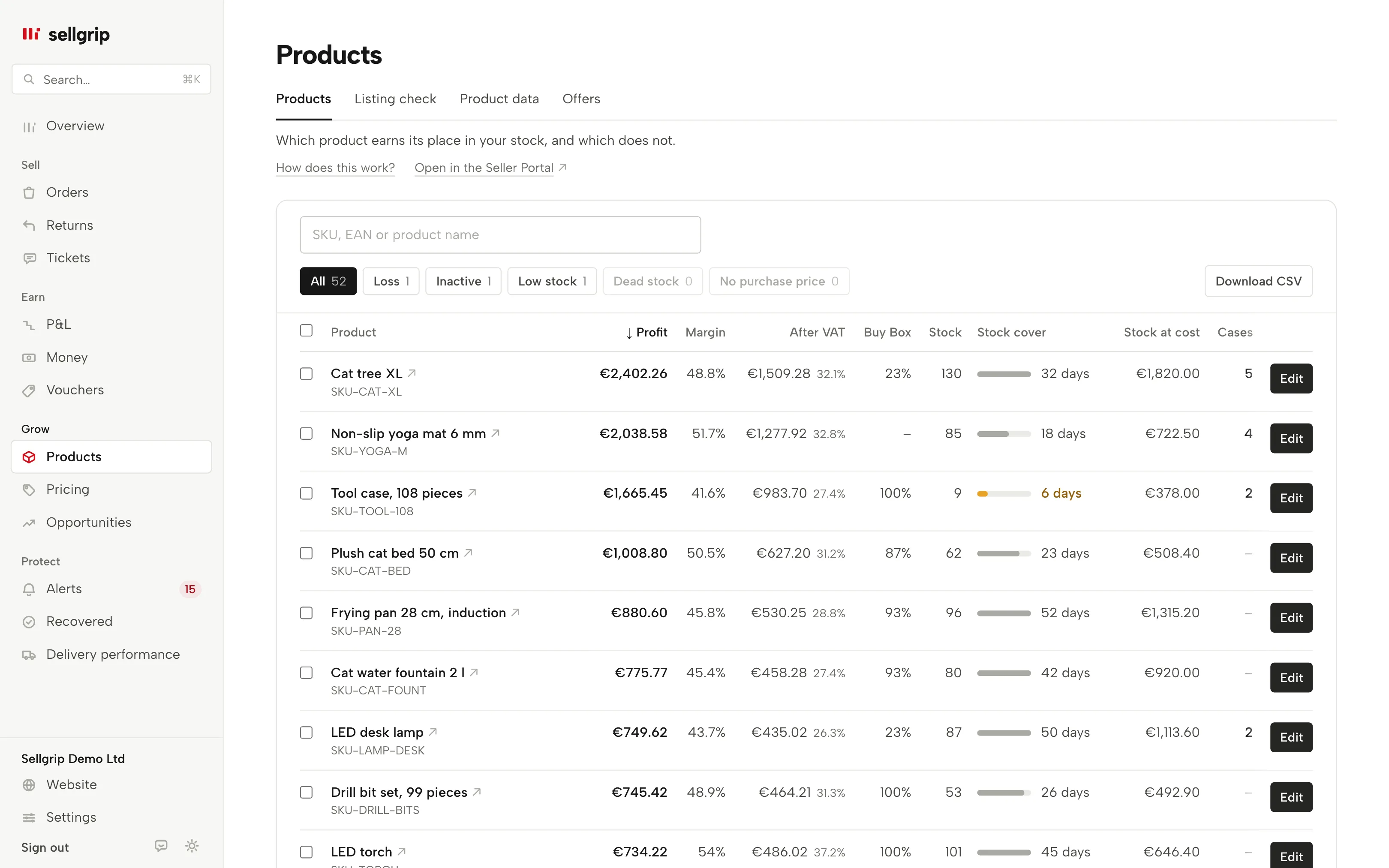
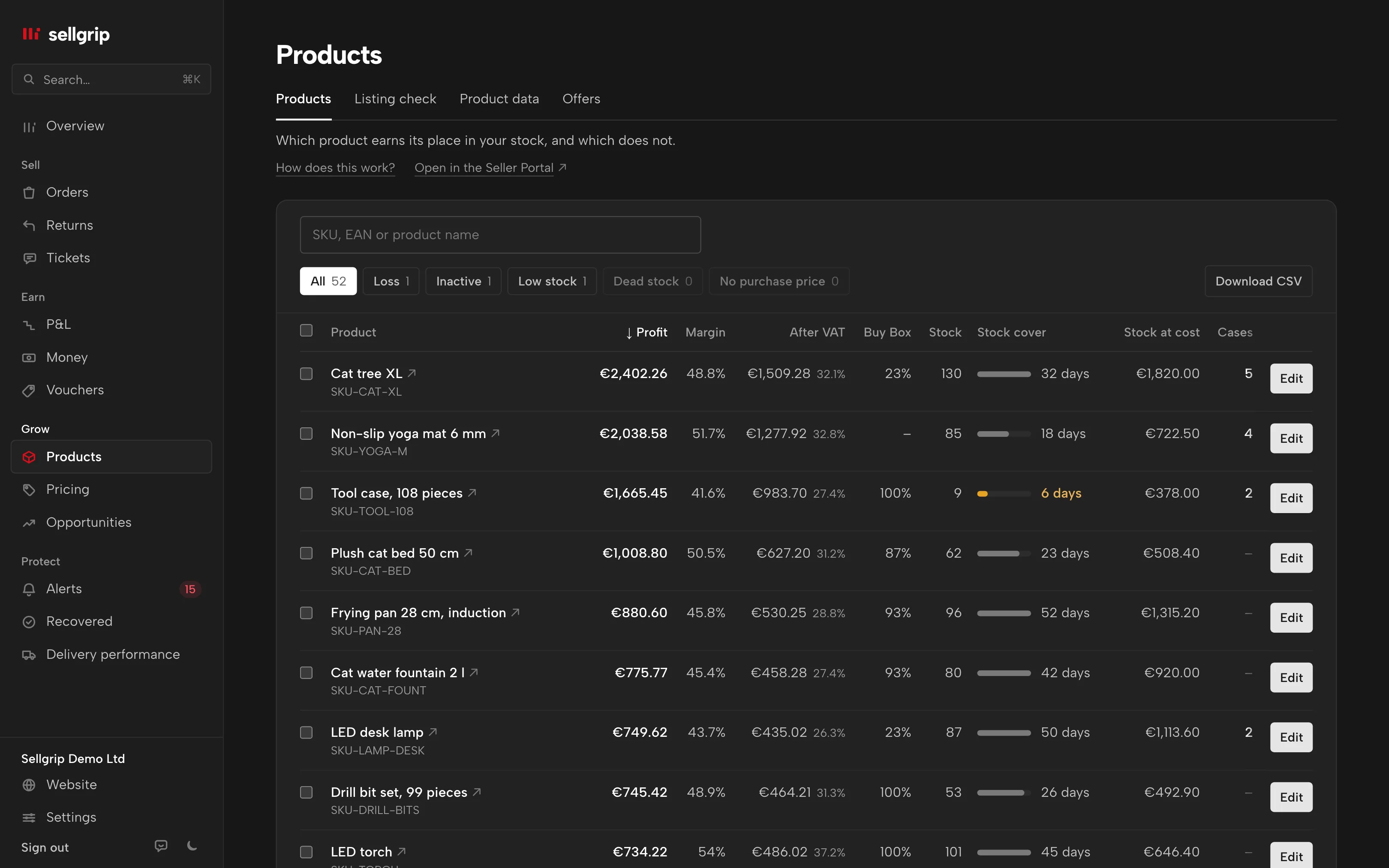
For every offer, Sellgrip shows what it earned in the last 30 days after all Kaufland costs. It also shows Buy Box share, days of cover and the money in your stock.
No payment details, no minimum term.
What the product list shows
Profit and margin
Sales minus Kaufland fees, shipping and cost of goods, over the last 30 days. Sellgrip calculates it the same way as the profit and loss.
Profit after VAT
The “After VAT” column takes out the VAT and shows the margin next to it. Ad costs are in neither figure.
Buy Box, stock and days of cover
The Buy Box share shows on how many of the last 30 days you held the Buy Box. Days of cover divide your stock by your sales per day.
Search, filter, sort, export
Search by SKU, EAN or name, with six filters and seven sort orders. Every selection sits in the address bar and can be bookmarked. With Pro, you download it as a CSV that opens in Excel as it is.
Change an offer on Kaufland
“Edit” changes price, stock, handling time, status (Active or Paused), warehouse and shipping group, straight on Kaufland. With Business, also the minimum price, with your break-even next to it.
Several offers at once
Tick offers, or “Select all” on the page, and change stock, handling time, status, warehouse or shipping group in one go. With Business, “Minimum price at break-even” sets the floor of each one.
How to use the product list
-
Upload purchase prices
Under Settings, upload a CSV with purchase price and shipping cost per SKU or EAN. With a valid-from date, Sellgrip prices each sale at the cost that applied back then.
-
Find the loss-makers
The “Loss” filter only shows products whose profit is known to be negative. Products without a purchase price are kept apart under “No purchase price”.
-
Check and act
The number under “Cases” leads to Alerts. Work out a new price in the profit calculator first, then set it with “Edit”.
Why profit per product matters on Kaufland
Kaufland charges commission per category, on top of shipping and purchasing. A product with plenty of sales can still lose money.
Without a purchase price, nobody knows the profit, Sellgrip included. So it shows a dash, and the product goes to the end instead of sitting among the zeros.
- Commission from 7% to 16%
- That is the range in every Kaufland country except Poland, where it is 4 to 12%. The commission calculator under Kaufland fees shows which rate applies to your product.
- Monthly base fee
- Kaufland also charges a fixed monthly fee for the seller account. It belongs to no single product, so it is not in the product profit.
Source: Kaufland, Conditions, read on 11 September 2026.
What you see in Sellgrip
- Columns
- “Profit”, “Margin”, “After VAT”, “Buy Box”, “Stock”, “Stock cover”, “Stock at cost” and “Cases”. On a phone, Sellgrip hides some columns.
- Filters with counts
- “All”, “Loss”, “Inactive”, “Low stock”, “Dead stock” and “No purchase price”, each with a count. The counts apply to your current search.
- Days of cover as a bar
- The bar shows stock in days and is full at 30 days. At 7 days or fewer, Sellgrip highlights it in colour.
- Not active, with the reason
- An offer that is not live on Kaufland carries the “Inactive” label and the reason. If data is missing, “Add details” opens just those fields. All attributes and images are under Product data.
- Offers tab
- “Status on Kaufland” counts your offers as Active, Inactive or Invalid and lists every offer that is not active with Kaufland’s reasons, with “More on Kaufland” where Kaufland gives a page. “Check status” asks Kaufland again.
- Stop selling
- For dead stock, “Edit” also offers “Stop selling”. Pausing can be undone, “Delete for good” removes the offer on Kaufland.
Questions about Products
What period does the list cover?
The last 30 days, on every plan, with the same data and purchase prices as the profit and loss, returns and refunds included. Longer periods are in the profit and loss, depending on your plan.
Why is there a dash under profit?
Sellgrip does not know all costs for this product, usually because the purchase price is missing. An unknown profit is not a profit of €0, so it goes to the end of the list.
Are ad costs included in the profit?
No, the list shows profit before ad costs. You upload your ad costs as a monthly total for the profit and loss.
What is in the CSV file?
SKU, EAN, name, profit and margin before and after VAT, Buy Box share, stock, days of cover, capital in stock, sales in 90 days, last sale, open cases, status and country. The column names are in your language, and Excel opens the file as it is.
Which plan includes what?
The list, search, filters and “Edit” are on every plan. The CSV export comes with Pro and Business, the minimum price with Business.
Can Sellgrip update my stock from my own list?
The Offers tab has a stock sync from your own CSV or a list address. Like the automatic mode of Pricing rules, it is switched on account by account, so not every account sees it yet. Otherwise you change stock with “Edit”, or for several offers at once.
Related tools
Checked on , last updated
Start with Sellgrip today.
You can start free without a card or a contract. Want everything? Try Business for 14 days (payment details required). After that you pay for the plan you chose, plus VAT, unless you cancel first.