Grow
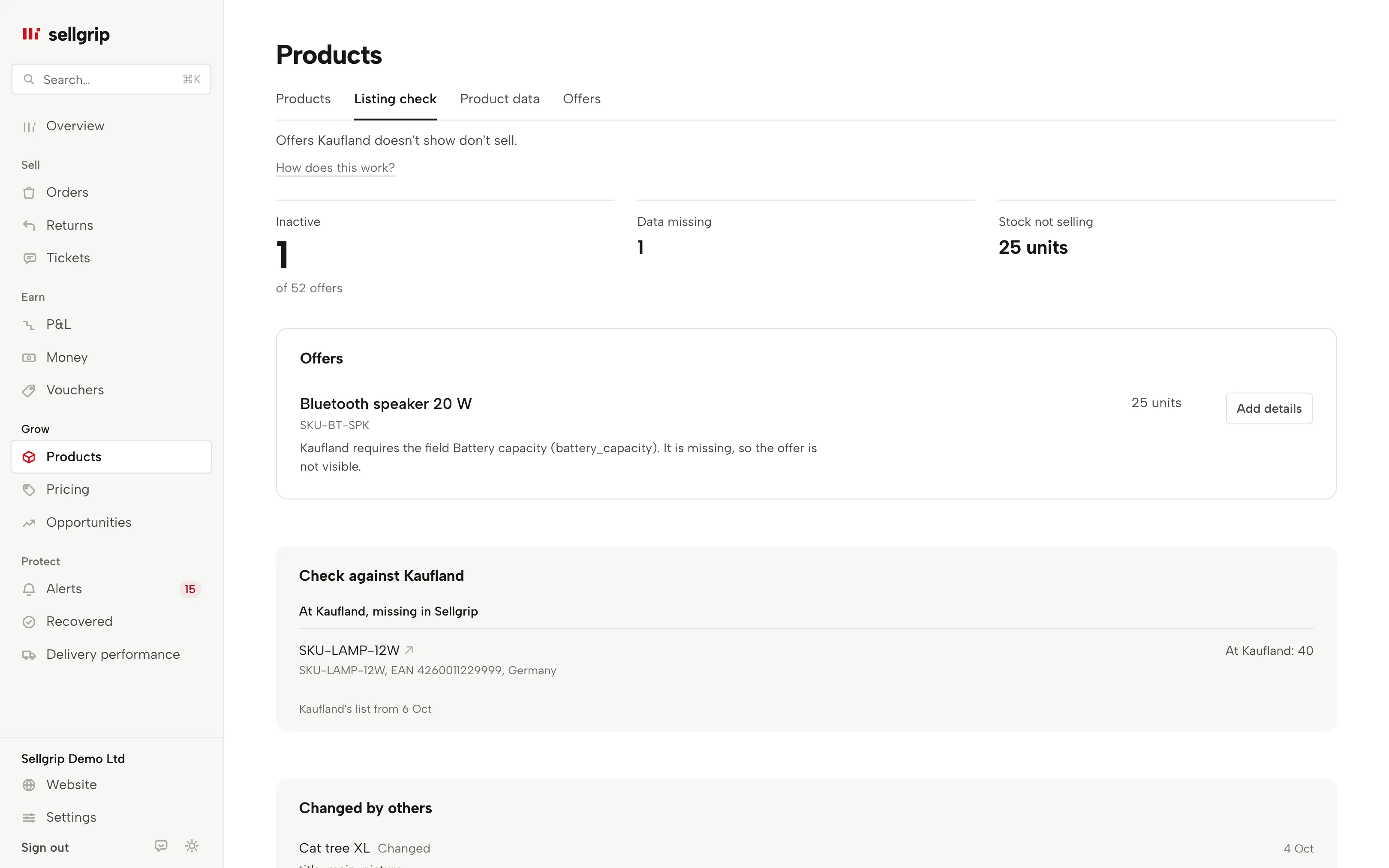
Add missing product data in Sellgrip.
Sellgrip shows how complete each product’s data is at Kaufland. You fill in the gaps in a form built from Kaufland’s own attributes, add images per storefront and read what Kaufland made of it.
No payment details, no minimum term.
What Product data does
Completeness per product
Every product with its percentage complete, how many mandatory and optional attributes are filled and the names of what is missing. The least complete come first. Filter by status or category.
A form from Kaufland’s attributes
“Edit” opens every attribute of the product’s category as Kaufland defines it: mandatory first, then the ones that depend on the product, then the rest. Each field shows Kaufland’s verdict. A declined value comes with Kaufland’s message.
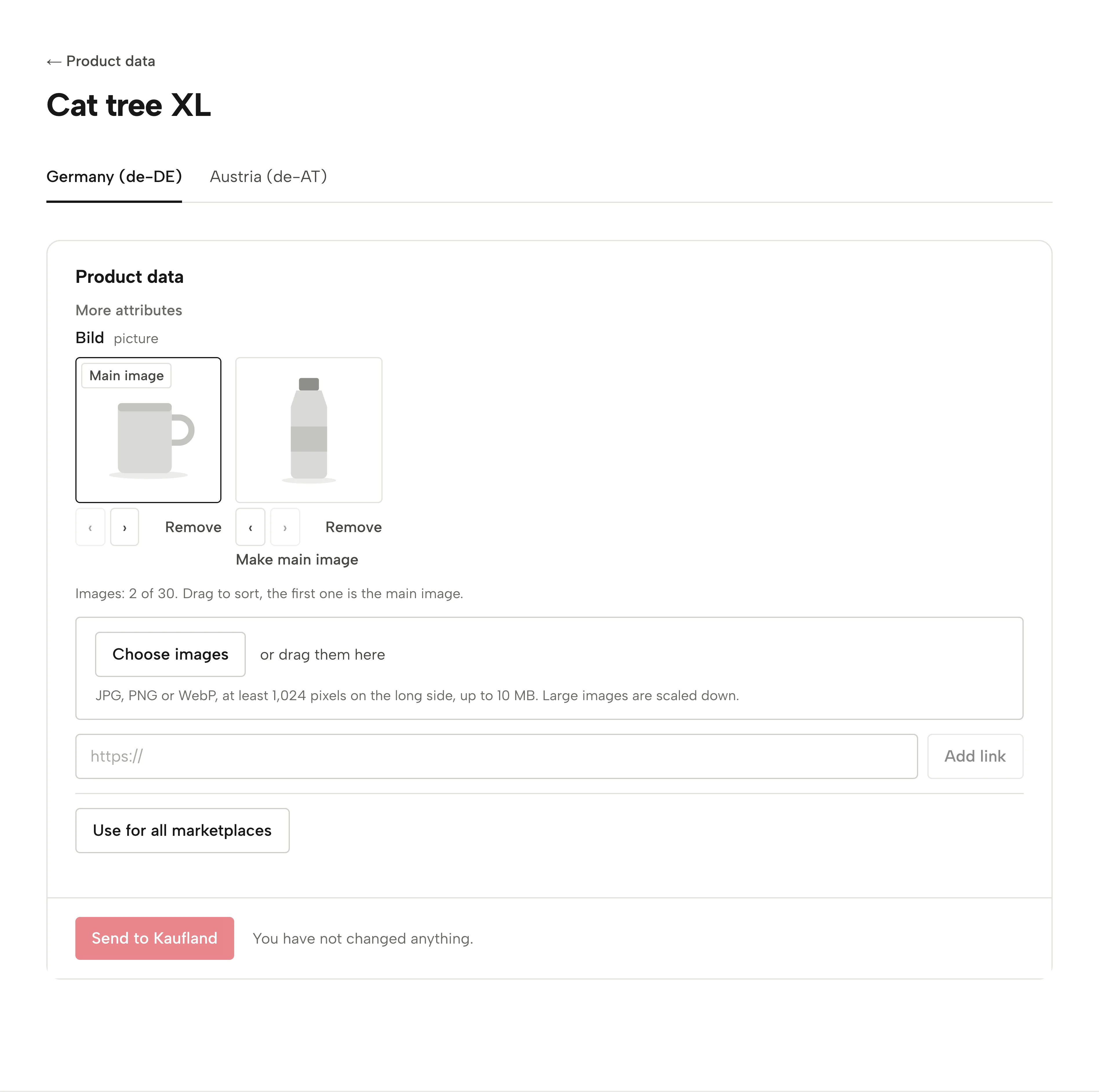
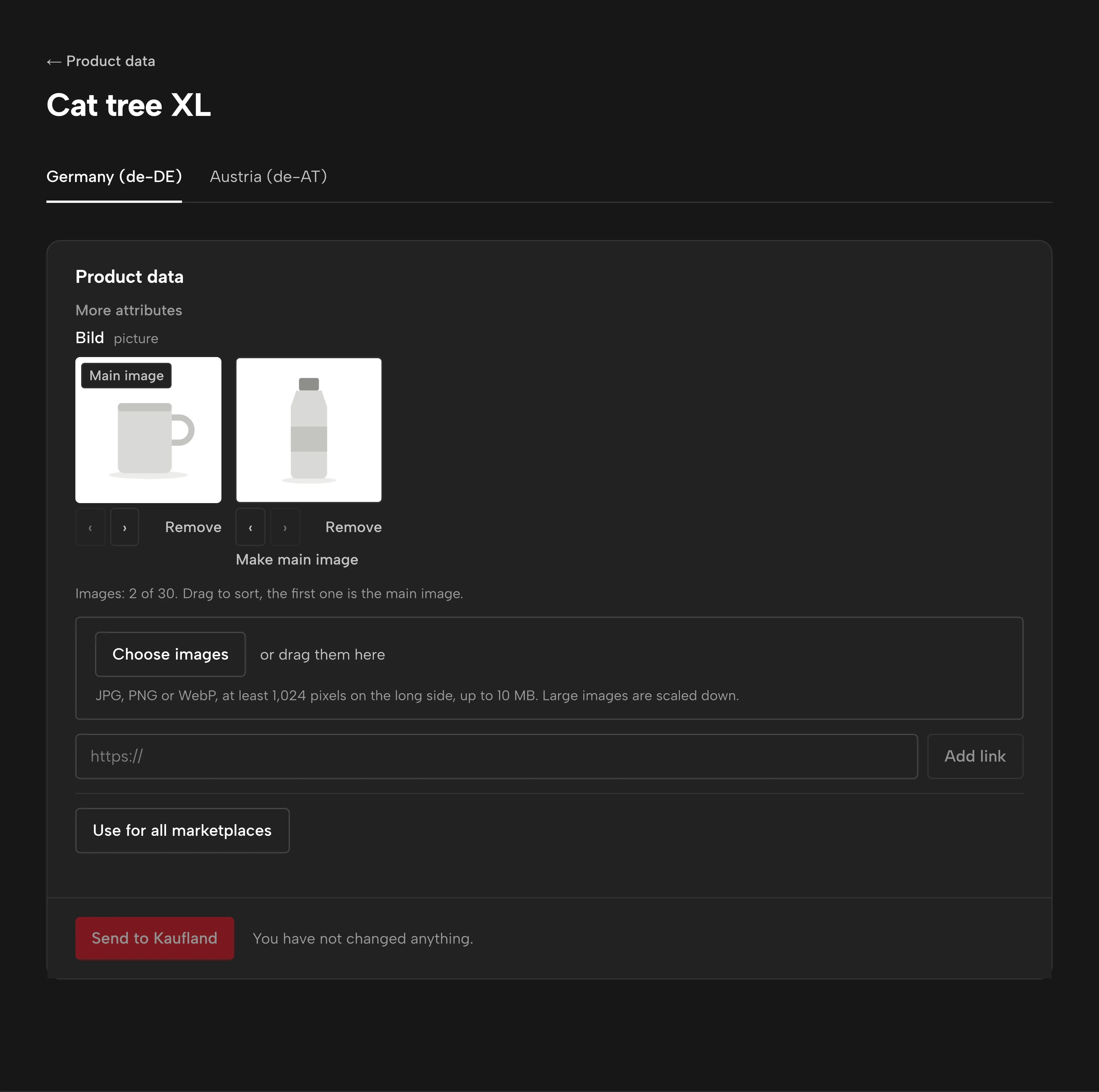
Upload images, Sellgrip hosts them
Choose images or drag them in, as JPG, PNG or WebP. Your browser resizes them to Kaufland’s guidelines: at least 1024 pixels on the long side, at most 2048, white where the image is transparent. Sellgrip hosts them, so you need no web space of your own.
Order, main image and storefronts
Drag to sort or click “Make main image”: Kaufland shows the first image first. Up to 30 per product. Each storefront has its own list, and “Use for all marketplaces” sends the same images to the others.
Every language, and copying between them
One tab per Kaufland storefront you sell in, in its language. “Copy to other languages” takes numbers, measures, yes/no and pictures as they are. Texts only if you choose so, without translation and marked “copied” until you check them.
One attribute for many products
Under “Categories”, “Set one attribute for several” sends one value, such as a material or a colour, to several products of the same category at once. The products that lack it are ticked already.
How to complete your product data
-
Start where it counts
Under Products, open the “Product data” tab. Filter on “Mandatory missing” or “Declined” to see first what keeps offers off Kaufland.
-
Fill in and add images
“Edit” opens the form for one product. Fill in what is missing, upload images and put the best one first.
-
Send to Kaufland
“Send to Kaufland” first lists the attributes you changed. Only those go, in this storefront’s language.
-
Read the answer
Kaufland checks product data in its own time. Sellgrip asks again by itself for a minute after you send, and “Check status” asks whenever you like.
Why an offer without details sells nothing
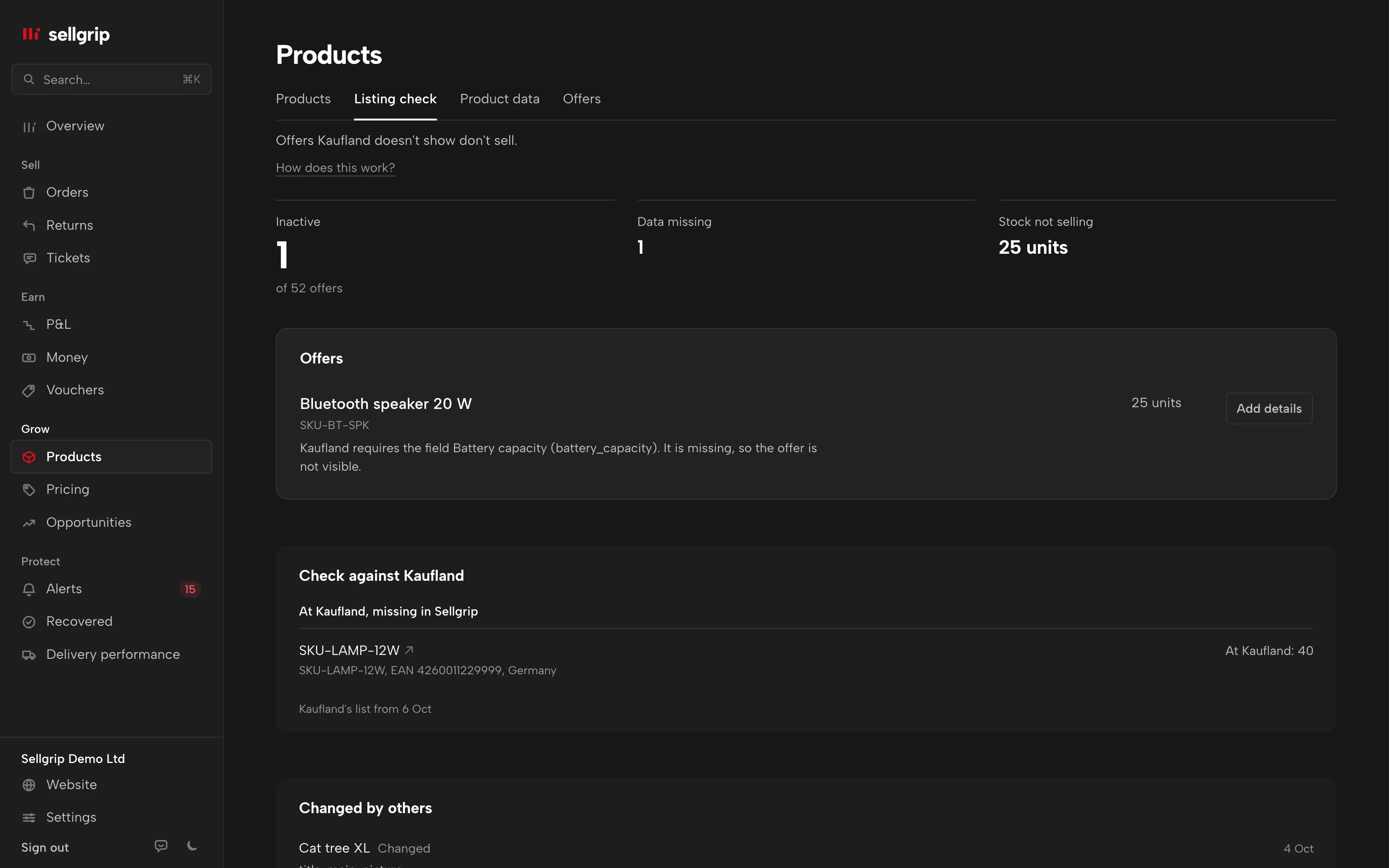
If mandatory details are missing, Kaufland does not show the offer. It has stock and a price, but no buyer sees it. Complete data and good images also make a product easier to find and choose.
Kaufland checks every value on its own, can decline one and combines your data with that of other sources. So sent does not mean live yet. Sellgrip shows each declined value with Kaufland’s message, so you know what to change.
- On every plan
- Product data, images included, is part of daily work, like shipping. It is included in Free too.
- In the log
- Every send is in the log, with the names of the fields. The log does not store your texts themselves.
What you see in Sellgrip
- Mandatory data missing
- The number at the top, out of all your products, with “Avg. complete” and the number of products with a declined value.
- Per product
- Status, category, “Mandatory 4/6, optional 12/30”, what is missing and every declined value with Kaufland’s message.
- Status at Kaufland
- Above the form: Kaufland’s latest answer, when it was checked and which attributes you last sent. While Kaufland checks: “Kaufland is still checking. Sellgrip will ask again shortly.”
- Images
- Thumbnails in the order Kaufland gets them, the first marked “Main image”, and a count such as “Images: 4 of 30.” If an image is too small or not a JPG, PNG or WebP, Sellgrip says so before uploading.
- Copied, please check
- The mark on a language whose texts were copied from another language and not yet checked and saved.
- Categories
- Each category with its number of products and how many lack mandatory data, with “Set one attribute for several”.
Questions about Product data
Which details can I fill in?
Every attribute Kaufland defines for the product’s category, apart from the EAN and the category itself. Sellgrip checks each value against Kaufland’s rules before sending. The short “Add details” form on Products and in the listing check only shows what Kaufland reports as missing.
Is the offer live right after I send?
Not necessarily. Kaufland checks the data later, can decline single values and combines your data with that of other sources. The status above the form shows Kaufland’s answer.
How do I add images?
Choose them or drag them in: JPG, PNG or WebP, up to 10 MB each. Sellgrip prepares them in your browser to Kaufland’s guidelines and hosts them for Kaufland. A link starting with https:// still works too.
Can each storefront have its own images?
Yes. If you sell in more than one Kaufland country, every storefront has its own image list. Want the same everywhere? Send the images once, then click “Use for all marketplaces”: the same images go to your other storefronts in the same order.
Which plan includes Product data?
Every plan, Free included.
Can everyone on the team send product data?
No, only people who may take actions in the team. With read-only access, the button is not there.
Related tools
Start with Sellgrip today.
You can start free without a card or a contract. Want everything? Try Business for 14 days (payment details required). After that you pay for the plan you chose, plus VAT, unless you cancel first.