Earn
Discount campaigns where you know the margin first.
Create Kaufland vouchers right in Sellgrip. Before the start you see per item what is left after the discount, and afterwards what the campaign brought in.
No payment details, no minimum term.
What you can do with vouchers
Create a voucher campaign, on Pro and Business
Name, country, discount as a percentage or an amount, start, end, items and, if you like, a maximum number of redemptions. You can also share it with price comparison sites. Sellgrip sends the campaign to Kaufland.
Margin per item first
“Check margin” shows, per item, the price, the discount, the promotion price, the break-even and what is left per unit. If an item is below break-even or its minimum price, Sellgrip asks you first.
Change, end, delete
Kaufland cannot change a campaign, so Sellgrip creates a new one and then ends the old one. Ending takes effect at once, and a planned campaign can be deleted.
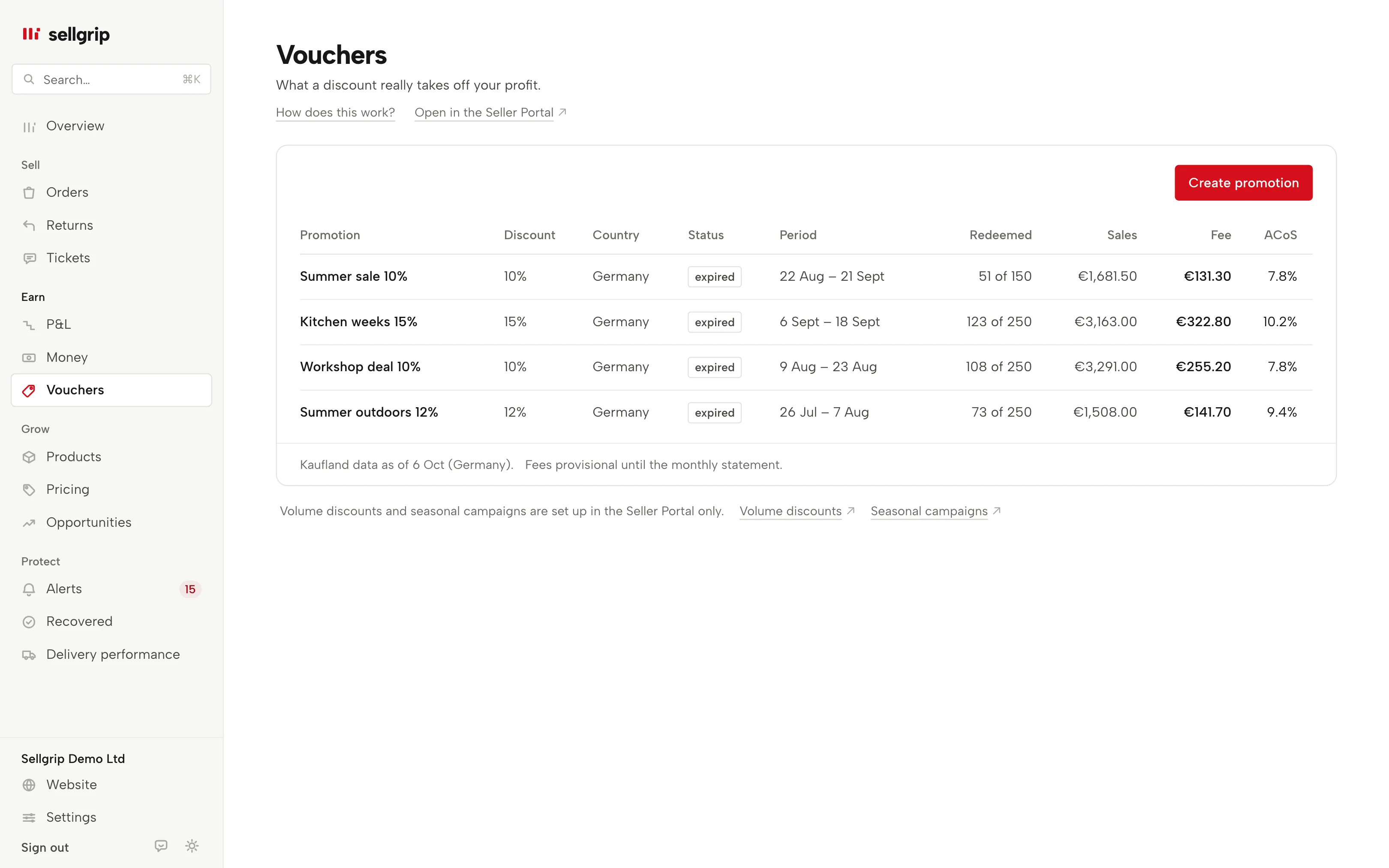
Every campaign at a glance
Discount as a percentage or as an amount in the country’s currency, country, status and period. Running and planned campaigns come first.
Redemptions, fee and ACoS
Kaufland’s own figures, per campaign and per item. If an item in an open campaign is above 25% ACoS, Sellgrip points it out, and a missing value shows as a dash instead of a zero.
How current the figures are
Below the list, Sellgrip shows per country when it last read Kaufland’s figures, marked “Older than 24 h” if they are older. Fees stay provisional until the monthly statement.
How a campaign runs
-
Create it and check the margin
You choose country, discount and items and click “Check margin”, and only then create the campaign. Campaigns created in the Seller Portal show up here too.
-
Sellgrip reads the figures
At most once an hour, Sellgrip fetches status, discount, products and Kaufland’s figures for redemptions and fees.
-
You compare
A high ACoS on a product means the fee eats a large part of the sales. That is where the discount earns least, and you end the campaign with a click.
What vouchers cost on Kaufland
Creating a voucher costs nothing: you pay per redemption, and the fees are only final with the monthly statement. The margin shown up front does not include this fee, and it says so.
The fee depends on the redemption, not on the size of the discount. On a cheap product, its share of sales quickly gets high.
Sellgrip already shows the fee during the campaign, as a provisional value. While a campaign runs or is planned for a product, the Buy Box tool gives no price recommendation there.
- Creating: free
- Kaufland charges nothing for creating a voucher.
- Per redemption: €0.49 or €0.99
- €0.49 for products under €100, otherwise €0.99. All other fees are on the Kaufland fees page.
Source: Kaufland, Conditions, read on 11 September 2026.
What you see in Sellgrip
- Create promotion
- The button above the list; in the dashboard a voucher campaign is called a promotion. The form ends with “Check margin” and the “Margin per item” table, with notes such as “below break-even”, “below minimum price” or “already in a promotion” in the last column.
- Change and End
- On every planned or running campaign. “End” asks first: the campaign stops at once and past redemptions stay.
- Status
- As Kaufland lists it: planned, active, inactive, expired, redeemed or deleted. Only a planned campaign is coloured.
- Fee and ACoS
- “Fee” is what Kaufland charges for the redemptions. “ACoS” is the fee divided by sales, as a percentage.
- Products
- The “Items” table on the detail page, with EAN, redemptions, ACoS and ROAS. If it is empty, the campaign covers all products or Kaufland sent no list.
Questions about Vouchers
Can I create vouchers in Sellgrip?
Yes, on Pro and Business: you can create, change and end campaigns, and delete planned ones. Before you create one, you see the margin per item.
What is the difference between ACoS and ROAS?
ACoS is the fee relative to sales, ROAS is sales per euro of fee. Kaufland calculates both, and Sellgrip takes them over unchanged.
Why does a campaign show a dash?
Kaufland did not send that value. Sellgrip only shows a 0 when Kaufland really reports 0.
Can I see volume discounts too?
No. The Kaufland Seller API does not provide them. Volume discounts and seasonal campaigns are set up in the Seller Portal only, and the Vouchers page links there. In Settings you tell Sellgrip per country whether you use volume discounts. Without that answer, the Buy Box tool gives no price recommendation in that country.
Does Sellgrip stop a discount below break-even?
No, that is your call. Sellgrip shows the loss per item and only creates the campaign once you confirm with a tick.
Which plan includes vouchers?
The overview with redemptions, fee and ACoS is on every plan, including Free. Creating, changing and ending need Pro or Business.
Related tools
Checked on , last updated
Start with Sellgrip today.
You can start free without a card or a contract. Want everything? Try Business for 14 days (payment details required). After that you pay for the plan you chose, plus VAT, unless you cancel first.