Earn
Work out a new price before you set it.
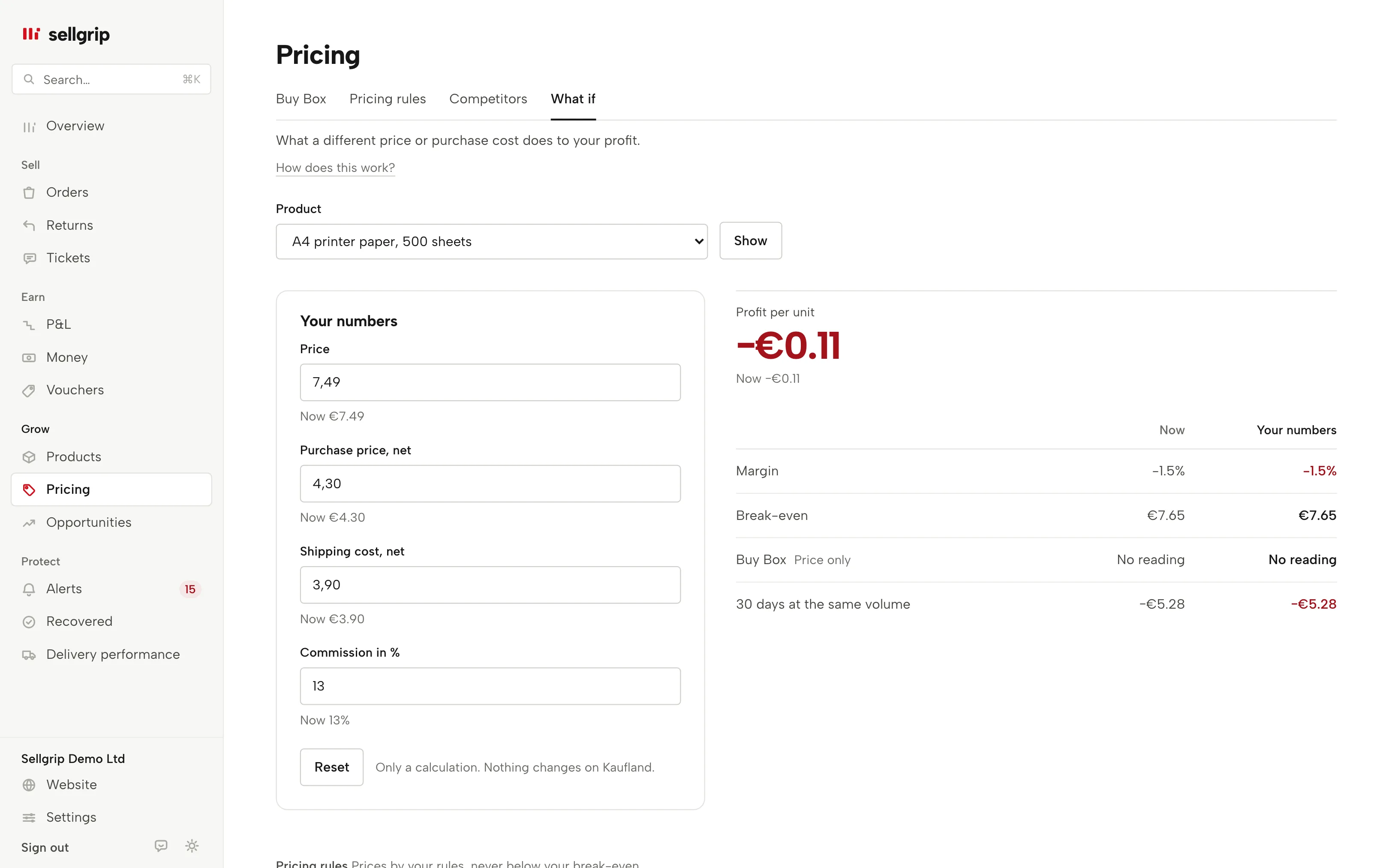
One product, your figures from today, and next to them what a different price or different costs would make of it. Nothing changes on Kaufland.
Try Pro or Business free for 14 days, then pay monthly or yearly for the plan you chose, plus VAT, unless you cancel first.
What you can try out
Four numbers to change
Price, net purchase price, net shipping cost and commission as a percentage. Each field shows today’s value. If Kaufland gives no fixed fee for the product, a fifth field for it appears.
Profit per unit
The main figure, next to today’s profit, with margin, break-even and the profit over 30 days at the same volume.
Gap to the Buy Box
Price plus shipping against the offer you have to beat, from the latest Buy Box reading. For example “€0.40 below the Buy Box”.
Notes instead of silence
If a promotion is running or a value is missing, Sellgrip still calculates and states the caveat below the figures. An unknown value is never zero.
Missing costs, entered on the spot
If the purchase price or shipping cost is missing, the note under the figures opens a field so you can enter it right there.
Koruna and złoty too
Czech and Polish offers are calculated in their own currency. Your euro costs are converted at the ECB rate, and the date of that rate is shown.
How you work out a scenario
-
Choose a product
Sellgrip loads the figures that Minimum prices and Pricing rules also use.
-
Change a number
Shortly after each entry, Sellgrip recalculates. “Reset” brings back today’s values.
-
Decide
If the price works, set it under Products or with a pricing rule. The scenario is in the link, so you can pass it on.
Why calculate before you set a price
One euro off the price can cost a large part of the profit, because purchase and shipping stay the same. With commission and VAT on top, few people get it right in their head.
Sellgrip uses the same formulas as the rest of the dashboard. So today’s break-even is the same one Sellgrip would suggest as a minimum price.
- Price only
- For the Buy Box, Kaufland also weighs delivery time and your performance. The gap only shows where your price stands.
- Commission on the gross price
- Kaufland charges commission per category on the gross sales price including shipping. The rates are on the Kaufland fees page.
Source: Kaufland, Conditions, read on 11 September 2026.
What you see in Sellgrip
- Your numbers
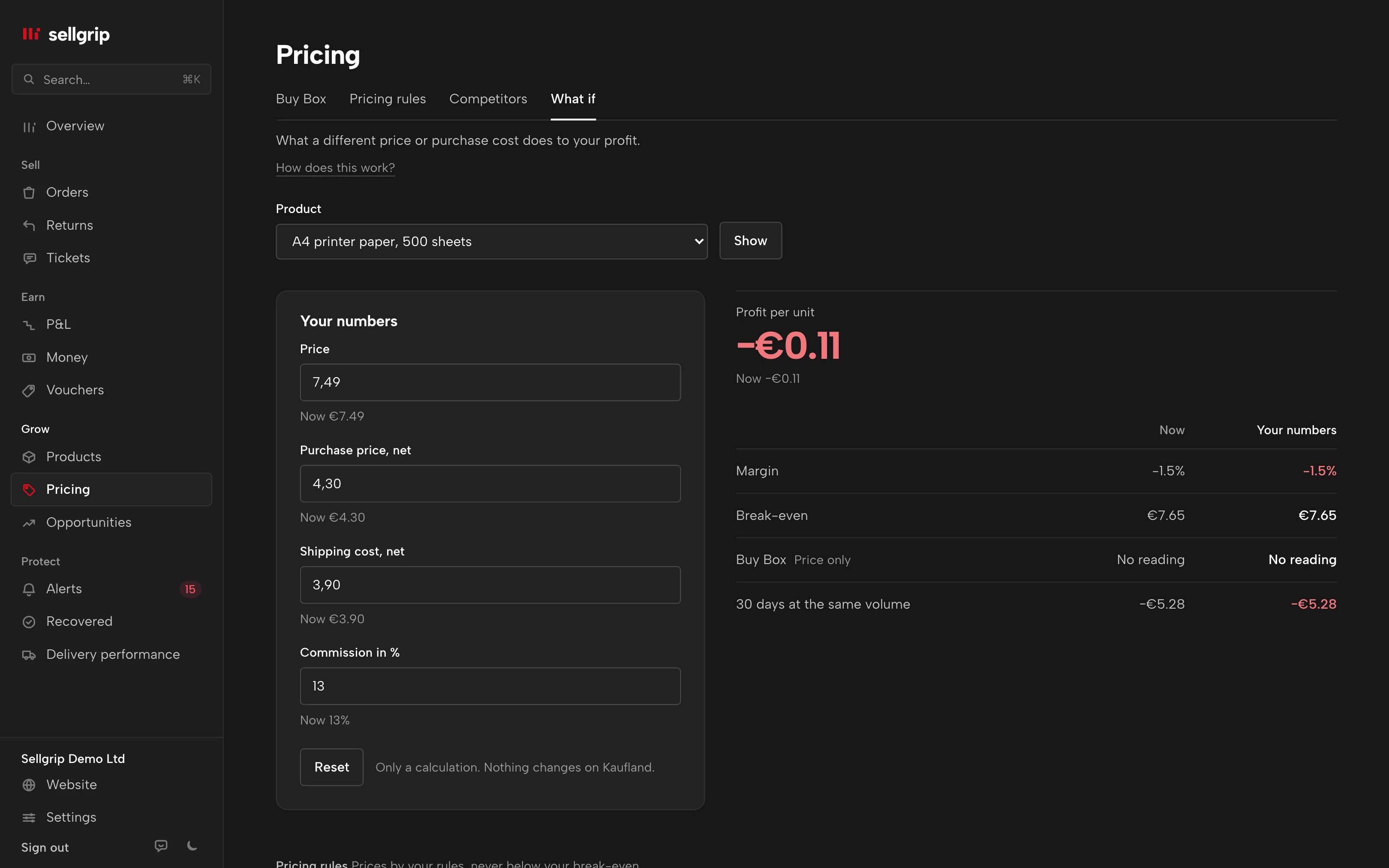
- The fields, each with “Now …” below it, and under them the line “Only a calculation. Nothing changes on Kaufland.”
- Profit per unit
- In large type, with today’s value next to it. The table below shows “Now” and “Your numbers” for margin, break-even, Buy Box and 30 days.
- Buy Box
- Such as “You keep it”, “€0.40 above the Buy Box”, or “No reading” if Sellgrip does not have one yet.
- Missing
- Shown on a field when Sellgrip does not know the value, such as the purchase price. The figure that depends on it stays empty.
Questions about What if
Does What if change my price on Kaufland?
No, Sellgrip only calculates and saves nothing. You set a price under Products or with a pricing rule.
Which plan includes What if?
Pro and up, including the 14-day Business trial. See pricing.
Where do today’s figures come from?
From your offer, your costs under Settings and Kaufland’s commission for the category. If the purchase price is missing, enter it or upload your cost CSV.
What if a promotion is running?
Sellgrip still calculates and notes that the promotion’s fee is missing. In that case, Sellgrip would not set a value for a minimum price.
Can I work out several products at once?
No, one product at a time. That way input and result sit side by side.
Which countries does this cover?
Offers in all nine Kaufland countries, including Spain, in the country’s currency.
Related tools
Checked on , last updated
Start with Sellgrip today.
You can start free without a card or a contract. Want everything? Try Business for 14 days (payment details required). After that you pay for the plan you chose, plus VAT, unless you cancel first.