Earn
Prices within your limits, never below your break-even.
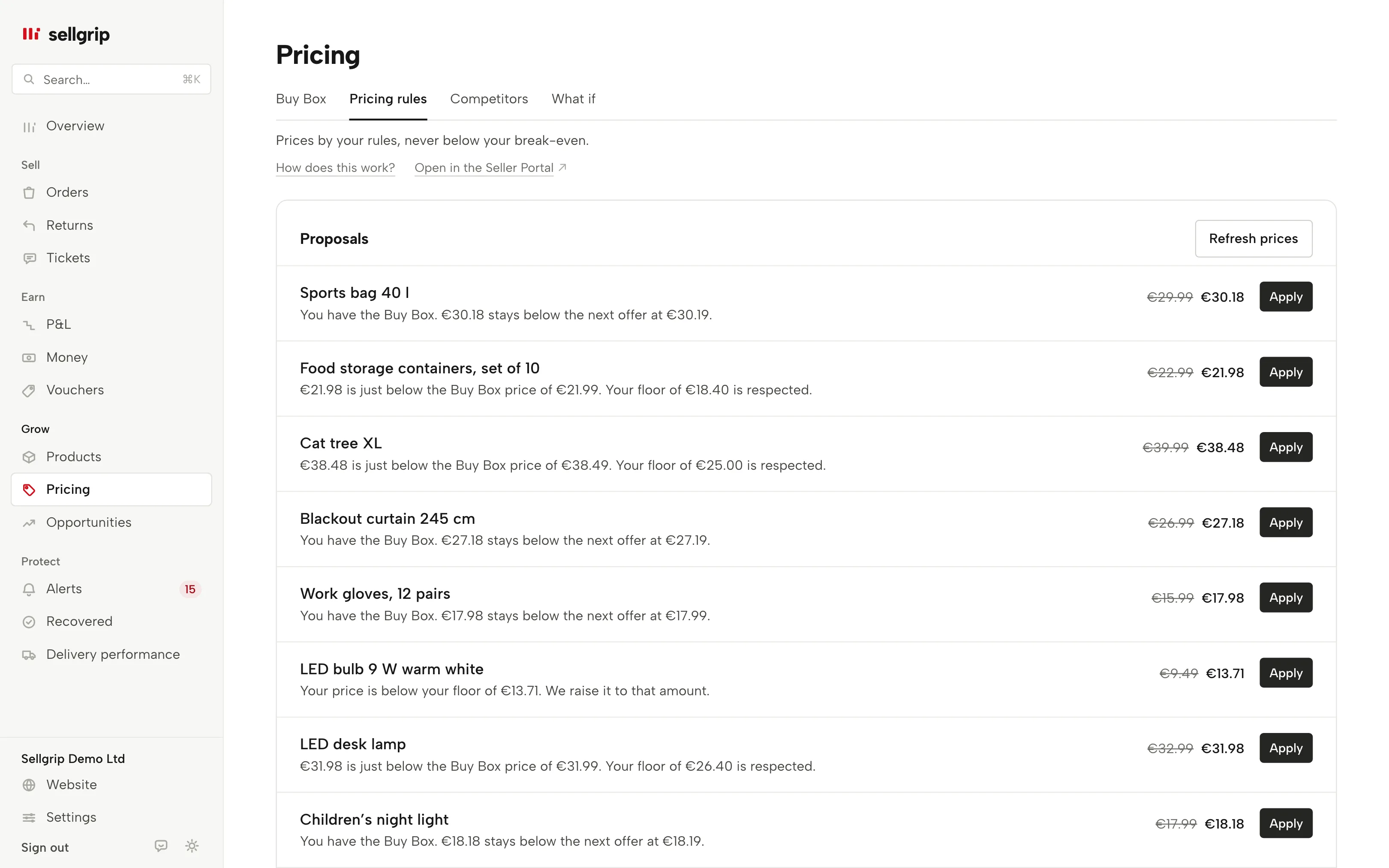
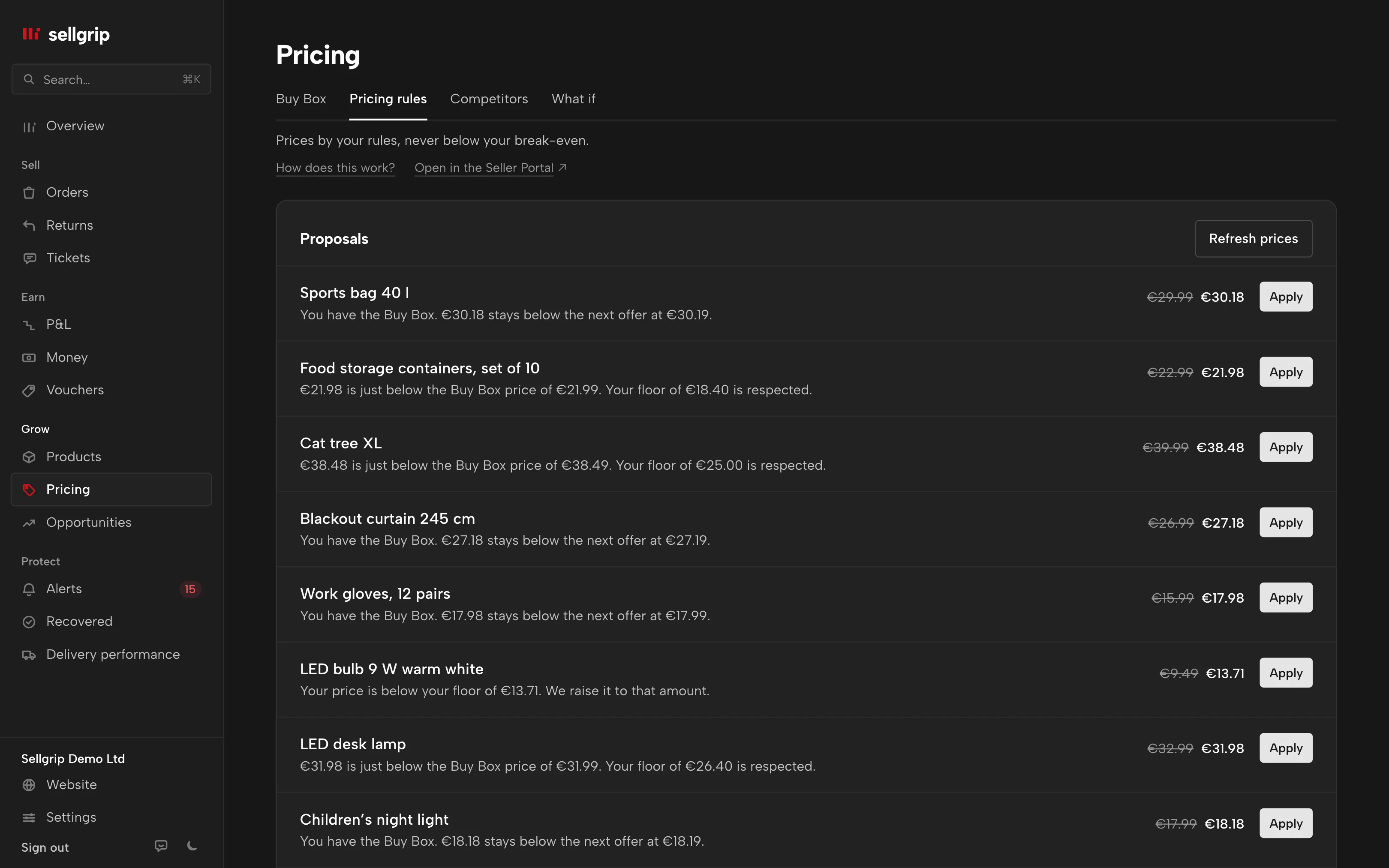
You set a rule per product, and Sellgrip turns it into a price proposal. One click on “Apply” sends it to Kaufland. Where your account has Automation, Sellgrip can also do this for you, within your limits.
Try Pro or Business free for 14 days, then pay monthly or yearly for the plan you chose, plus VAT, unless you cancel first.
What pricing rules do
One rule per product
A minimum price, a maximum price and, if you want, a minimum profit per unit. You also pick one goal: win or keep the Buy Box, keep a gap to the next offer, or only protect the profit.
A proposal you approve
For every product that is switched on, Sellgrip names the new price or the reason the price stays. Unless a product is set to “Automatic”, nothing goes to Kaufland without your click.
Never below your floor
The floor is the highest of your minimum price, your break-even, and your break-even plus minimum profit. It is the same break-even as on the Buy Box page.
The Kaufland minimum price counts too
If your offer has a minimum price at Kaufland, for example from Minimum prices, it is an extra floor. While Smart Pricing is moving the price, Sellgrip makes no proposal.
Automatic, if you want
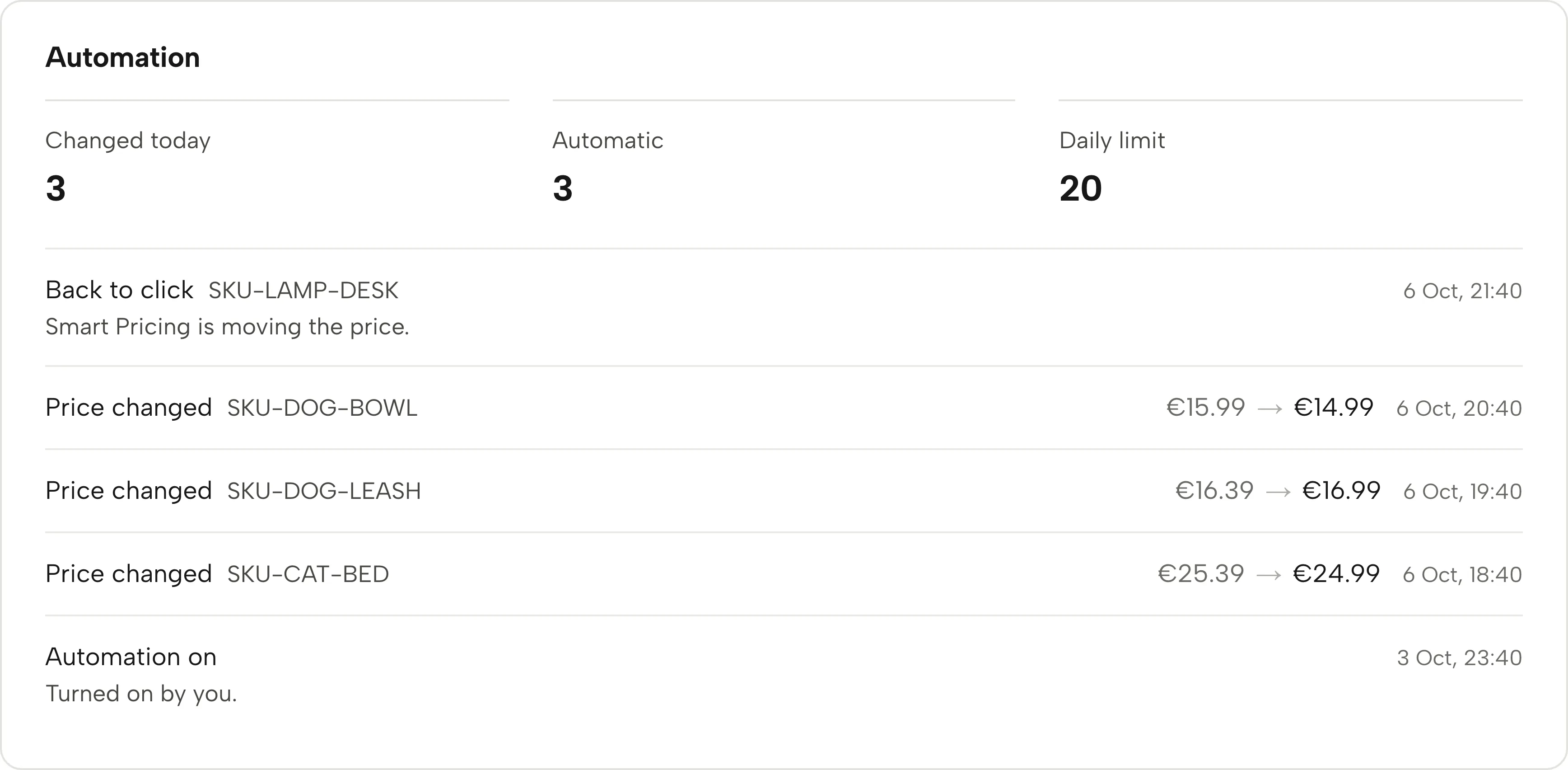
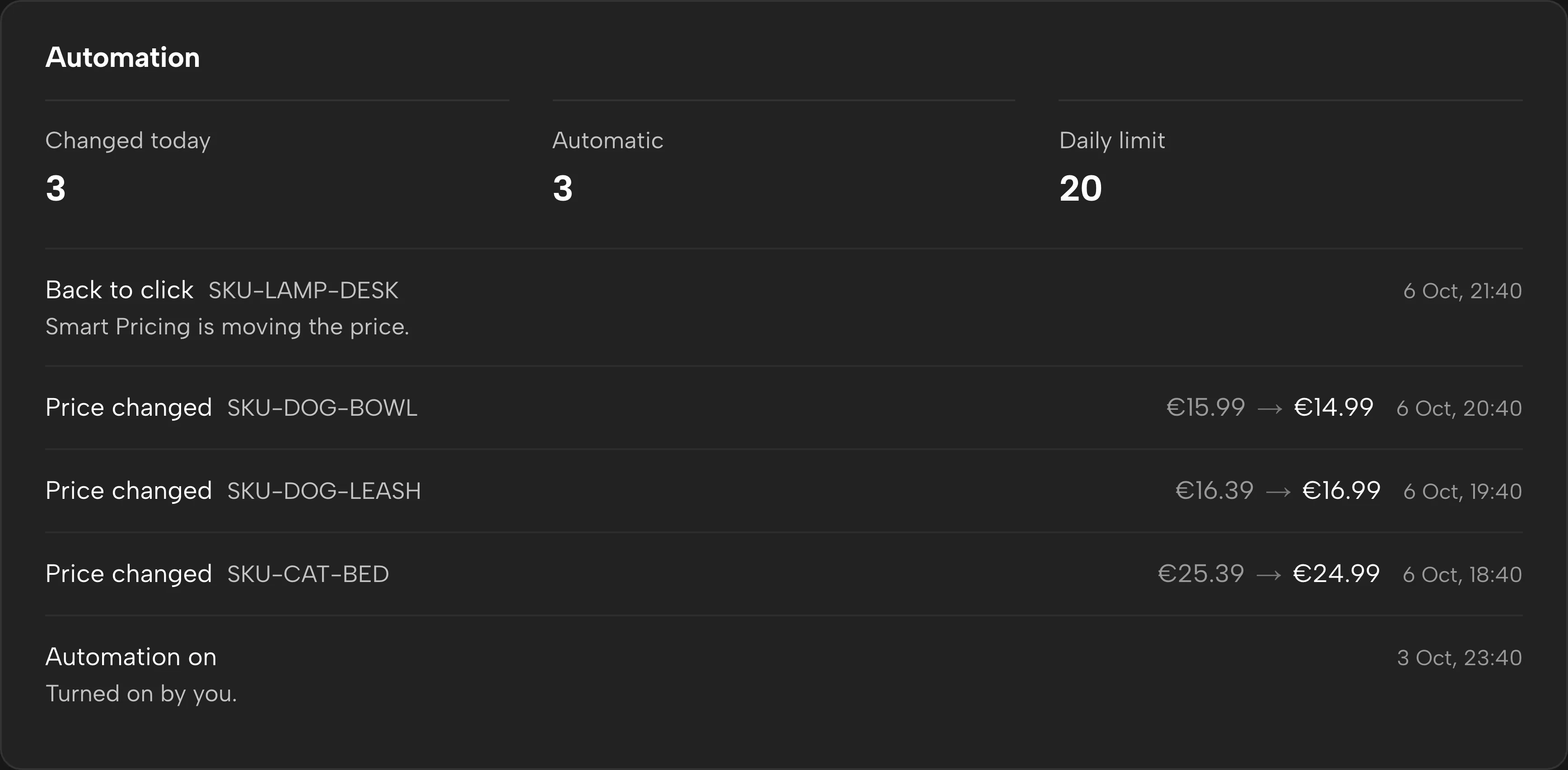
For products set to “Automatic”, Sellgrip applies the proposal itself at every sync, about every 15 minutes, within your limits. Automation is being switched on account by account. Without it, a price changes with one click.
Emergency stop, log and history
The emergency stop ends every price and stock change at once. Your rules and switches stay. Every click is in the log, every automatic change in the history.
How pricing rules work
-
Set a rule and switch it on
Every product is off until you switch it on. The list shows the floor next to the price.
-
Read market data
Sellgrip reads the Buy Box at Kaufland for the products you switched on. Market data older than two hours is not used.
-
Apply the proposal
When you click, Sellgrip recomputes the proposal with fresh data. If it has changed, nothing is sent and you see the new price.
-
Or let Sellgrip do it
If your account has Automation, turn it on in its dialog and set products to “Automatic”. Every change then shows in the history.
Why every price has a floor
If you only watch other sellers’ prices, sooner or later you sell below your own costs. That is why every proposal is checked against purchase price, shipping, commission and VAT.
If the Buy Box would only come below your floor, your price stays as it is. Sellgrip cannot promise the Buy Box, only that no proposal goes below your floor.
- Only the price
- For a product, Sellgrip sends the listing price and nothing else. A pricing rule does not change stock or the minimum price.
- A pause between changes
- After a change a product waits 60 minutes, unless its price is outside your limits. No product gets more than four changes a day.
- Limits for Automation
- By default at most 5% per change, 15% per product per day and 20 changes a day for the whole account. You can set your own limits in the dialog.
- All nine countries
- Pricing rules apply to offers in all nine Kaufland countries. In Czechia and Poland the proposals are in koruna and złoty, never below that country’s floor.
What you see in Sellgrip
- Proposals
- Product, old and new price, and one sentence on why. Next to it is the “Apply” button.
- Products
- Price, floor and where the floor comes from, plus the status of each product. “Rule” opens the rule, and “Turn on” and “Turn off” work the switch. Once Automation is on, “Automatic” and “By click” set the mode per product.
- Automation
- Its state (off, or on since a date with your limits), prices changed today, products on “Automatic”, the daily limit and the history of every automatic change. “Turn on” opens the dialog, “Turn off” ends it with one click.
- Refresh prices
- Reads the Buy Box again for the products that are switched on, if the last reading is older than ten minutes.
- Emergency stop
- At the bottom of the page. It stops every price and stock change until you click “Lift emergency stop”. While it is on, Sellgrip shows no “Apply” button.
- Log
- Under Settings, every price you apply reads “Price changed by pricing rule”, with the time and the old and new price.
Questions about Pricing rules
Does Sellgrip change my prices automatically?
Only if you want it to. Automation is being switched on account by account. Where it is available, you turn it on in a dialog that says exactly what will happen, then choose “Automatic” or “By click” per product. Otherwise Sellgrip sends a price only when you click “Apply” on a proposal.
Will this win me the Buy Box?
Nobody can promise that. Pricing rules make sure you do not go below your floor trying.
Why is there no proposal for a product?
Usually the break-even is missing or the market data is too old. The reason is in the product’s row.
What about the minimum price at Kaufland?
It counts as an extra floor. A pricing rule does not change it.
Which plan includes pricing rules?
Pricing rules come with Business, and with the 14-day Business trial.
What stops Automation?
With Smart Pricing, missing costs or old market data it changes nothing. If waiting does not help, it puts the product back to “By click” and gives the reason in the history. After three errors in a row it turns itself off. The emergency stop ends everything at once.
Related tools
- Is every Buy Box worth winning? Guide
- Kaufland Smart Pricing: how to set a minimum price Guide
- Buy Box price calculator Free calculator
- Buy Box Sellgrip tool
- Price guard Sellgrip tool
Last updated
Start with Sellgrip today.
You can start free without a card or a contract. Want everything? Try Business for 14 days (payment details required). After that you pay for the plan you chose, plus VAT, unless you cancel first.